

Ask any ad ops team what keeps them up at night and you’ll hear about the loud failures: a tag that won’t load, a demand partner outage, a sudden drop in fill. But some of the most expensive problems in header bidding make no noise at all.
A demand partner with a missing or mistyped ID doesn’t throw an error. The page loads, the other bidders run and the auction carries on. That partner simply never bids. Nothing looks broken, so nobody goes looking, and the revenue it should have earned quietly disappears until someone spots the gap in a report weeks later.
That’s the problem we set out to solve when we rebuilt integration mapping in Fusion.
The ID problem every ad ops team knows
Every platform you connect has its own view of your inventory. A demand partner knows your site as, say, site 12345, and each placement on it by its own placement ID. Google Ad Manager has its own tree of ad units. Your analytics platform knows your sites by property ID. Before a partner can bid, it has to be told which of its IDs belong to which site and which ad unit.
Now multiply that out. Ten demand partners across 40 sites, each with a dozen ad units, is thousands of individual values, and every one of them has to be right. In most setups they end up hard-coded into wrapper configuration, copied from site to site, or kept in spreadsheets that slowly drift away from what’s actually live.
The usual workaround makes things worse. Because the IDs live in the configuration, each site gets its own copy of the same line-up of partners, differing only in their IDs. Adding a partner means making the same change in 40 places. Miss one, and that site quietly earns less than it should.
Set every ID once, in the right place
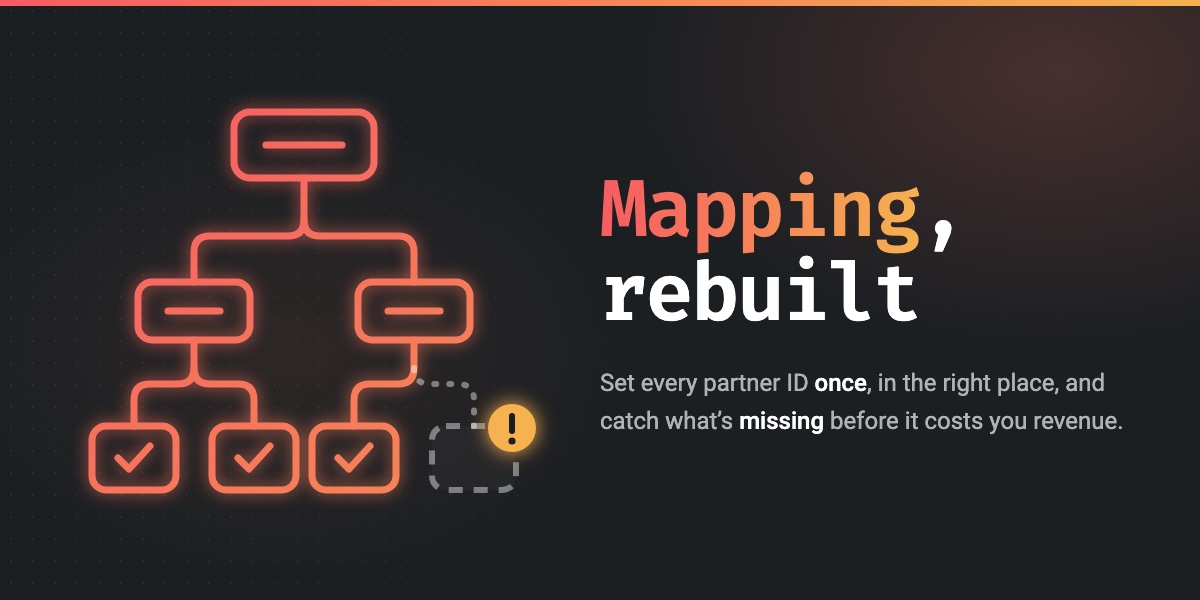
Mapping is the link between your Fusion setup and every platform you connect. It tells Fusion which IDs belong to which publisher and ad unit, and Fusion fills them in for you everywhere they’re needed: in the Publisher Tag, in Prebid Server requests and in the Mobile SDK. You never touch Prebid code.
With the rebuild, you can set any integration field at any of five levels: an ad unit, a publisher, an organisation, an ad stack or the integration itself. For each field, the most specific value wins. So a partner’s site ID can live once on the publisher, while a placement ID that differs for one position lives only on that ad unit. Set a default once, then override only the exceptions.
That flexibility changes how you build. Ad stacks now decide which partners run, and mapping decides which IDs they use. Publishers that run the same partners can share one ad stack, with no copies to keep in sync, so adding or removing a partner is a single change. We’re not aware of another platform that gives ad ops teams this much control over where each ID lives.
A few other details make the day-to-day smoother:
- Map first, launch later. Enter a partner’s IDs while you wait for it to approve your sites, then add it to your ad stacks when you’re ready. It bids with the right IDs from the first auction.
- Owners stay in control. If you own an integration, you decide which publishers it’s approved for, and the fields only an owner should set are read-only for everyone else.
Not just telling you what’s wrong, but how to fix it
Too often, a missing ID is only discovered when someone notices the revenue isn’t there. Fusion checks every ad unit for required IDs that have no value anywhere in the chain, and flags the gaps wherever you’re likely to look:
- The publisher dashboard shows an alert such as “2 required ids missing for 1 integration on 3 ad stacks”, with a Fix button that takes you straight to the gaps.
- The Integrations page has a Mapping column showing how many publishers and ad units are affected. One click opens that partner’s mapping.
- Ad stacks name the missing fields and tell you where to set them.
- Every mapping screen lists the missing fields first, ready to fill in.
Warnings only help if you can trust them. When a gap is deliberate, for example a partner that only runs on some of the publishers sharing an ad stack, mark it Will not map. The decision is recorded, the warning clears, and the alerts that remain are the ones that need you.
When a value isn’t what you expect, the Value hierarchy answers the question for you. Icons inside each field show when another level holds a value. Click one to see every level, which value is actually being used and anything that overrides it. “Why isn’t my new ID being used?” goes from an investigation to a glance.
And when a fix isn’t yours to make, Fusion says so. A required field that only the integration’s owner can set is marked Owner must set, so you know exactly who to ask. Every mapping screen also links straight to the relevant part of our documentation.
Built for the way ad ops teams actually work
Rolling a partner out across a network shouldn’t mean an afternoon of copy and paste. Every mapping grid has CSV templates, import and export:
- Download the template, which lists every field key with an example value.
- Fill it in: one row per publisher for the site ID, and one per ad unit for the placement ID.
- Import it. Fusion checks every row, lists any problems by spreadsheet line, and saves nothing until you apply the valid rows.
Tags rebuild automatically after every change, so there’s no separate publish step to forget. And because Export downloads everything currently set, auditing a publisher before launch, or keeping a record before a big import, takes seconds.
Getting started
The new mapping is live for every Fusion account, and your existing IDs have carried straight over. Start with the publisher dashboard: if anything is missing, Fusion will show you what and where, and take you straight to the fix.
If you use Content Ignite demand on a Plug & Play basis, our team handles mapping for our built-in integrations, so there’s nothing you need to do.
To get the most from it, read our Mapping guide, which covers where each value should live and our recommended best practices, or see Integration Mapping for every screen and option.